
Settings and Database
Settings control both the visible app behavior and the technical data maintenance.
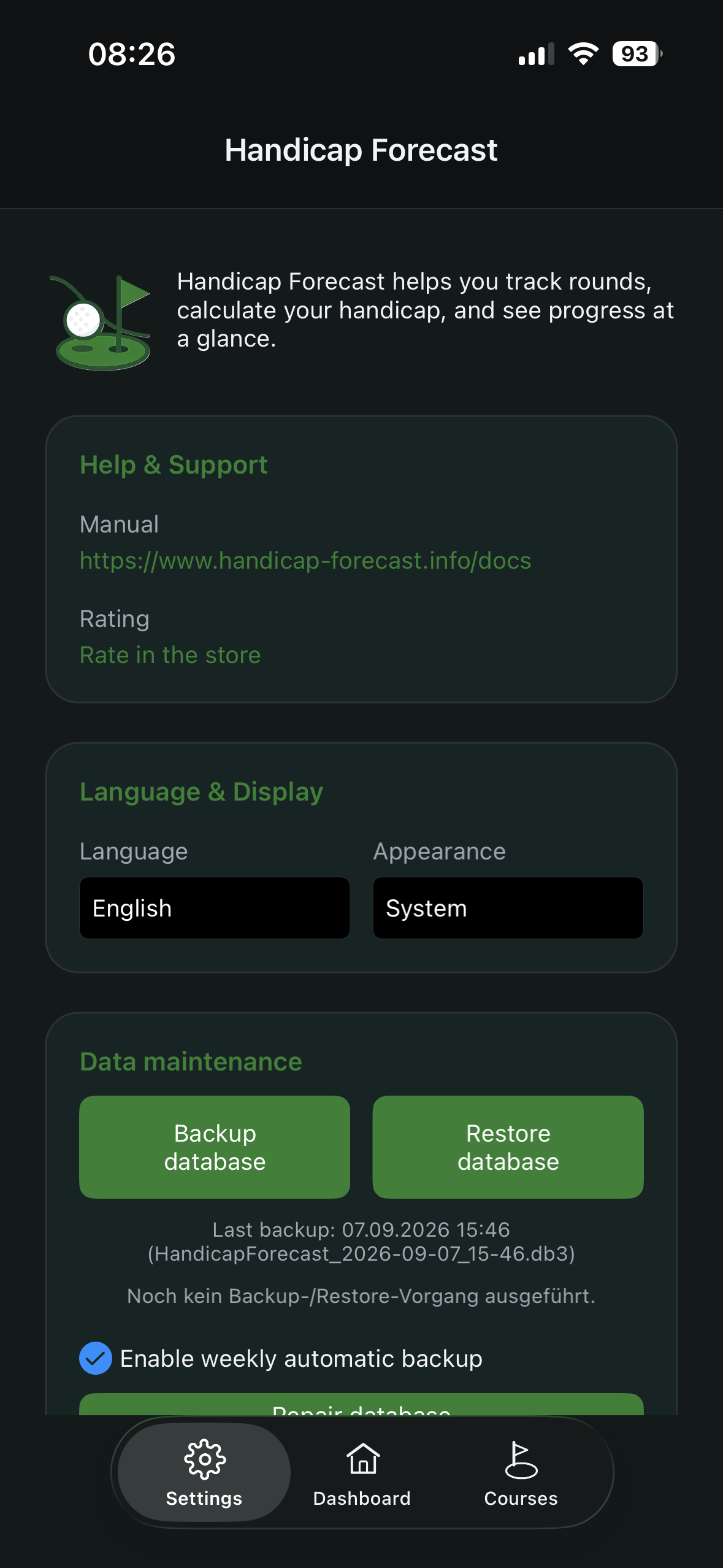
General settings
- Language
- Appearance (theme; changing the theme, for example to dark mode, is only possible with Premium)
Database functions
The database functions are visible in the Premium version only. The app’s live database is stored locally at .../LocalApplicationData/HandicapForecast/handicap.db3.
Backup database
When you tap Backup database:
- The live database is first checked internally and written as an SQLite backup to a temporary file.
- The backup is validated (file size, SQLite header,
PRAGMA integrity_check). - The app then opens the system save dialog.
Where it is stored:
- You choose the destination yourself in the system dialog (local or cloud, e.g. iCloud Drive / Google Drive / Files).
- On Android there is a fallback to
Downloads/HandicapForecastif the primary save dialog fails.
File name:
- Export name:
HandicapForecast_YYYY-MM-DD_HH-mm.db3
Restore database
When you tap Restore database:
- A safety confirmation appears.
- You select a backup file.
- The file is checked internally (
integrity_check) and loaded into a temporary database. - Migrations / schema updates are applied to that temporary database.
- The live database is then replaced atomically by the new database.
Important: the current live database is overwritten in the process.
Enable automatic backup
The switch enables a weekly auto-backup. How it runs:
- Triggered on app start and on returning to the app (resume).
- Also after a successful database repair.
- Only if at least 7 days have passed since the last auto-backup.
Storage and naming:
- The auto-backup uses the same backup function as the manual backup button.
- The same file name applies:
HandicapForecast_YYYY-MM-DD_HH-mm.db3. - The actual storage location is determined by the system save flow (local or cloud).
- If the auto-backup fails or the save is cancelled, the app keeps running; the error is logged internally.
Repair database
When you tap Repair database, the app runs maintenance directly on the live database:
- remove any
-wal/-shmfiles REINDEXVACUUM- then
PRAGMA integrity_check
Why you might need it:
- To fix inconsistencies / index problems after crashes, locks or file errors.
- It stabilizes the database structure before normal saving and backups resume.
Initialize database
When you tap Initialize database:
- The entire database file is deleted and recreated.
- All tables are recreated.
- All previous content is gone (profile, clubs, courses, tee boxes, results, history).
Delete results
When you tap Delete results:
- Only result data is removed:
TournamentResultsHandicapHistoryEntries
- HCPI fields in the profile are reset (
ComputedHCPI,CurrentHCPI,YearLowHCPI). - Master data such as club, course and tee box management is kept.
Difference: Initialize vs. Delete results
- Initialize database: full factory reset of the database (everything gone).
- Delete results: only result and history data gone, master data kept.
Important note
Initialize database and Delete results are destructive actions. Always create a backup first.